Showing posts with label Tips and Tricks. Show all posts

Friday, February 25, 2011

Declutter your Harddisk using WinDirStat

With every passing month, you add so much digital clutter in your computer that it becomes an impossible task to clean up your hard disk. Forget cleanup, just trying to find out what really is eating up your storage space itself becomes a huge task.

I ran into a similar situation and that's when i decided to attack the problem no matter what.

Initially I used the most dumbest way of finding out what really was eating up space - right-click->Properties at all top-level folders under c-drive and then further drill down in a similar fashion.

I thought I will quickly identify that one folder that really is eating up space. It took half-hour to realize how scattered all my files (photos, videos, music, installables, pdfs, documents, etc.) were.

I was wondering how easy it would have been had this been Linux - just run the "du" (disk-usage) command and figure out whats eating up

Ah, thats it.. install cygwin and that will let me run this command.  But it really wasn't worth installing hundreds of MB of cygwin data just to analyse disk usage. So, I started searching for a standalone windows based tool that will give me disk usage stats, which led me to this post in lifehacker which introduced me to WinDirStat.

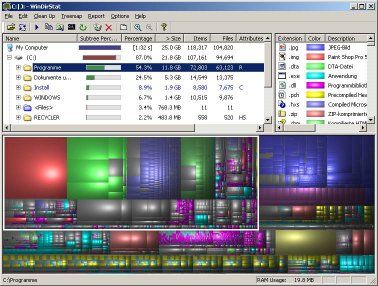
Its one of the best system tools that I have come across for the windows OS, which lets you visualize your hard disk. And what a nice way of visualizing your hard disk - elegant and brilliant.

Hover your mouse pointer on top of one of these colored blocks and the status bar below will show the filename along with its complete path. And click the block to ready locate the file and do whatever you want, including deleting this file from your hard disk.

Its an amazing tool to start visualizing your hard disk and start attacking all that clutter. Btw, I also found this tool useful for locating some long lost videos, mp3s and jpegs.

There is also a tree-map view and file types view which are visible by default. The file types view is really useful as it tells you what type of  file is occupying how much. In my case, clearly all the videos, mp3s and jpegs were eating up all the space. All I had to do was back them up in an external hard disk.

So, go ahead and clean up that clutter.

PS: I read later that WinDirStat was inspired by KDirStat which is the KDE-Linux version of the same tool. Cool! :)


#tweetit

Monday, June 29, 2009

Reduce your email clutter - how to catch up and conquer your inbox!

The below post had been sleeping in my draft folder for half a year. On reading this draft post, I realized how much it would be useful for folks who really need a hold over their emails. Enjoy reading this post. And ahh.. I am not posting about Moblin and ChromeOS as promised.. sorry :)

By the way, I am not a productivity guru. All thoughts expressed below are from my quest to conquer my email client. I hope this will be useful for you too!.
---------------------------------

First of all, email overload may not be a problem for everyone. But if it is problem managing your inbox and unread mails, then this post, I hope, should bring you some hope and relief.

If you are what I was many months back, then you must be opening your email inbox everyday with a heavy heart and with doubts on whether you would be able to finish reading all your emails today and with even more doubts on your ability to reduce the number of 2000+ or even more unread mails (staring at you in bold numbers next to the inbox icon).

While you open the inbox with the above mentioned doubts, a separate thread of thought appears to race in your mind on whether there are any important mails from the past that you might have missed reading. Even for the ones you had time to read partially, you must have flagged them for later reading and action. Your mind is worried about clearing those read mails but flagged in hundreds.

What a mess it is.. with your mind already stressed by the thoughts of digital clutter and your inability to catch up with the email overload day after day.. everyday. Things could get worse if your mail client is an unfriendly one such as lotus notes (and/or) you are a manager with a huge team to manage (and/or) your job requires you to interact with many other cross-functional teams (and/or) your a news and information junkie (and/or) many more obvious and unobvious reasons unique to your situation.

Apart from guilt and unproductive use of time, another major problem with not clearing your inbox is that your mind creates this illusion of work overload and that you never have time to spend for yourself/your family/your projects/your colleagues/etc. The email clutter gives you an illusion that you always have a lot to do. But the fact is, at the end of day when you learn to manage your inbox, you will find that whats needed of you from your mails is manageable and that you could complete your work and still have time left to do things that you love. After all remember that email is an enabler at work and is not the sole purpose of why you go to work.

I was in the same state until I decided to take control of the situation rather than going with a day to day flow of work and worrying thoughts in the background about your email clutter and your inability to catch up.

Today I have a clear inbox at the end of day. I am not stressed by the digital clutter. I am able to reply to mails that are important and that need my immediate attention. I am able to spend more time on things that matter, after I have started saving time because of my ability to finish clearing my inbox sooner (time saved is time produced :)). Of course, I am still in a learning phase where I keep trying out new techniques and trying to master the ones that work for me. Refining my skills to manage digital clutter is an ongoing process for me, but a very interesting and fun-filled experience/experiment at the same time.

So here is a list of recommendations that have worked for me and I hope the same should help you rule your mail (phrase that I came up with ;)) and maintain an empty inbox.


Be responsible - Choose to have it or leave it: Choosing to not have a mail id may not be a option for most of us. But, if you choose to have a personal email id and if you are not able to manage the inflow of mails, then decide for yourself if you wish to continue having this email account.

But if you do need to keep your email account, then you also need to take up a personal responsibility to give the care and attention it deserves. You need to make a personal commitment to yourself on not abusing this email account by either spamming others and not abusing yourself by allowing unwanted emails (which you may never read) to keep accumulating day after day.

Make a resolution to make the best use of this modern day tool and use it to your advantage to enable you in you day to day life.

Consolidate your email accounts: Again, it is best for you to consolidate your multiple email accounts - personal and official - into just three email accounts, one of your personal work, the second for your official usage (which most of us should get from the companies we work for) and finally a personal "subscription" email account (will talk about the third one very soon). Remember, your email id is your personal and unique trademark and it is best for you to have just one for your personal use.

And the reason why I recommend having a personal and official one is for obvious reasons. You don't want your personal emails from cluttering your official inbox and prevent you from focusing on what's important at work. There are exceptions to this where you may still want to forward some really important ones from your personal email account to your official email account. Will talk about it below.

Reduce your information inflow: This is one of the first and most important steps you may want to do, before you start decluttering your email inbox.

First of all, go ahead and unsubscribe yourself from all these sites where you have registered your email id to get updates on products and their promos. You may find it hard to do this step because of your fear of losing out on important information. But if you haven't been reading mails from these subscriptions for more than 3 weeks, it is highly unlikely that you will ever read them too (except for once in a while when you see some eye-catchy subject in it).

Don't get disheartened about losing out on information. That's where the third email account - the subscription email account - comes in handy. Go ahead and subscribe yourself again using your third email account (if that's absolutely required, else I still wouldn't recommend subscribing to it if I won't read the mails for more than 3 weeks).

For those of you who cannot/do not want to have a third subscription email account and do not want to unsubscribe from this newsletter, try this simple trick. Create an email rule which marks these subscription mails/newsletters to mark then as unread and then move to a different folder dedicated for this newsletter. For those having Gmail account, you will do the following - mark these emails as read, label them appropriately and then archive it.

Some other ways of reducing information flow is by disabling email notifications from your social networking sites like facebook, linkedin, orkut, twitter, etc. They do add to a lot of email clutter. When you do visit these sites on a daily basis and if you haven't been reading these email notifications, then why have them enabled in the first place!

One other way of reducing information flow (this applies more so for your official email account) is by removing yourself from mailing list/groups. Again, apply the same rule.. if you haven't been reading these mails for more than a week, then you probably do not need to be a part of this group. So go ahead and remove yourself from such groups. As I said before, you still can choose be a part of these groups, but just add your subscription email id to these groups that you feel you need to be part of, no matter what. When it comes to your official email account, the only option left for you, in case you still want to be a part of these mailing lists/groups which you never read mails, is for your to setup rules to move them appropriately to relevant folders. I will talk about rules in a short while.

Last but not the least, be responsible and make sure you do not send out unnecessary emails to bigger groups. Basically, limit your email communication as much as you can (to the most important mails).

Declutter (Cleanup): The best way to clear your inbox is by sender's name and then deleting all those subscription emails/newsletters, email notifications from social networking sites and the mailing lists/groups. This should bring down the size of your inbox by many folds.

The above step will ensure that you do not push all the unwanted emails from getting archived and thereby preventing your archives from getting cluttered.

The next step, once you have cleared your obvious clutter in the inbox, is to archive your inbox to move all your mails older than 2-3 months old into the achieve folder. The achieve file varies depending on the email client. If its Gmail, then you just archive your conversations. If its your Lotus Notes or Outlook, then you move the files from the server to a local archive folder.

One tip here is to have separate archive files for every year.

Rule your mail: Do you really utilize the power of your email client to increase your email productivity. You are not being effective with handling mails if you are not using rules. Also,you are not being effective if you are not using rules in a smart way.

For me personally, this has been one big reason - using rules effectively - for taming my inbox clutter and being effective day in and day.

I was experimenting with rules for quite some time and then one day due to divine inspiration :) (actually its common sense) I struck upon the success formula for the perfect set of rules (these are perfect till I find anything more useful :)).

Important point here is to categorize mails into separate folders/categories while not moving them from the inbox. What!! categorizing into separate folders/categories without moving the mails into separate folders!!! You've heard it right.

Traditionally, rules have been associated with 'moving' mails into different folders. But believe me, that is the most ineffective way of managing mails and a bad way of using rules. In fact, you are better off maintaining all your mails in the inbox without using rules. Well, let me explain

Have you ever realized as to why we like Gmail a lot. Yes, its faster, it uses AJAX and has other new improvements such as keyboard shortcuts (my favorite). But I bet, deep inside your heart, you like it because it lets you categorize your mails using labels (and also using multiple labels). Labels let you categorize your mails while the mails are still in your inbox. You can also see them as separate folders by filtering it with a specific label name.

And I am saying, this is the same strategy that you should also use for any mail account - your office or personal; lotus notes or ms outlook.

Another reason for not moving your mails from your inbox is to let you easily sort your Inbox in a conversation view (which follows a particular mail thread). But if you have moved some mails of that conversation/mail thread to a different folder, then you really don't get the complete picture of the conversation.

For your personal mail account, you anyways achieve the categorization using labels, if you are using Gmail. If you are not using Gmail, I beg you to ditch your existing mail accounts and hop on to Gmail. Apart from labels, its has tons of other good features - keyboard shortcuts, chat integration, docs integration, skins/themes, to name a few.

So if you are already using Gmail, then setup rules for as many mails as possible. Try to label the mails you are using automatically using rules. While you can have specific labels such as "Google", "Citibank", etc. try to label your mails in a more generic way as well. I will talk more about setting up rules in a short while. Let me finish off how you can categorize your mails without moving them in separate folders in Lotus Notes and MS Outlook.

In Lotus Notes, I am not sure how many of you have discovered this, but instead of moving a mail to a specific folder, copying it to a specific folder acts just like labeling in Gmail!!! That's good news isn't it :). So say, I copy an unread mail into a folder. The mail is available in both my Inbox and the folder to which I've moved it. But the best part is, when I do any action on the mail, whether in Inbox or the folder - like reading it, marking it as read, flagging it, or deleting it, the action also reflects in both Inbox and the folder to which you've copied this mail.

Now again, trust me, will explain to you how this feature is helpful, in a short while.

In MS Outlook, I guess, the only way you can achieve categorization (without moving mails to specific folders) is by upgrading to MS Outlook 2007. But if you are already using MS Outlook 2007, then you are in luck.

So in MS Outlook 2007, the categorization feature is called Categories :). They are also called as color categories. This is same as the labeling that you do in Gmail. So needless to say, its very easy and efficient way of categorizing your mails using multiple categories. More than me explaining to you about categories, you can read this article here to know how categories work in MS Outlook 2007.

At this point, I am not aware of how other mail clients or online mail accounts support categorization or labeling (for example, in Mozilla Thunderbird or Yahoo Mail), so I going to stop about categorization here.

Categorization or labeling is just the first of the two requirements towards effectively managing your mails. You have to know "HOW" to categorize/label/filter your mails in order to be effective. So let me explain the "How" of it.

The way you categorize/label your mails is as follows.
  1. Important Mails: Mails from bosses or other important people (not more than 5-6 people), else this category/label gets cluttered easily.
  2. Meeting Invitations: More applicable for your office mail account. You many want to quickly review and accept the meeting invites.
  3. Mails requesting your approvals: Again, more applicable for your office mail account.
  4. Mails in which I am marked in 'TO'
  5. Mails in which I am marked in 'CC'
  6. Mails in which I am marked in 'CC' explicitly, but also a mailing group has been copied in 'TO' or 'CC'
  7. Mails in which I am neither marked in 'TO' or 'CC', but indirectly copied as a part of a mailing group
  8. Least Important Mails: Mails from groups or communities that you have subscribed yourself to. If you have any of these mails, then I recommend subscribing them on your subscription mail account, but you cannot avoid if you have access only to your Office mail account.
In the above rules, you can combine rules 6. and 7. if you want to.

So setup your rules in Gmail, Lotus Notes or Outlook 2007 to categorize the mails you receive in the above way. The 'How to setup rules' in your mail client demands a separate blog post in itself. I am not covering that here and i am assuming that you will be setting up your mail rules to categorize the mails into the above 7 or 8 categories.

By the way, after setting up the rules, you will notice that there are still a very small percentage of mails that don't fall into any of the above categories. That doesn't mean that your rules are not perfect.

Trust me, the ones that don't get categorized into any of the above are usually not that important mails and you can keep them for reading at the last.

Process your filtered mails: The job is only half done by segregating the mails into the above categories.

As I had mentioned earlier, the really important mails that demand your attention is far less that you could imagine (but if that's not the case, then you need a serious lesson in unplugging yourself and prioritizing your work and personal life. No amount of mail management will prove helpful). So everything else in your inbox is a form of digital clutter which just sucks energy out of you by making you take some action on it. In the process of cleaning up the digital clutter, you get so tired that you lose interest and energy in replying to the mails that matter the most. More importantly, clearing your inbox becomes more of a dread.

Now coming back to processing the mails that are categorized like above, you can right away start with the most "Important Mails" and "Mails in which I am marked in 'TO'". This is what matters the most.

For me, personally though, the count of unread mails sitting next to the Inbox icon/folder and staring at me is what causes lot of distraction. So I always start from the bottom - "Least Important Mails".

I quickly mark these mails as read using keyboard shortcuts after glancing through the preview window. The advantage of this is that, you quickly process all the unwanted mails and thus leaving your mails with only the important ones. I don't worry about not having missed anything else.

Trust me.. try the above way of categorizing your mails and processing them and I promise you that you will have a zero inbox and you would have not missed/procrastinated on important mails.

This has worked for me for close to a year now and I am able to maintain my inbox with zero unread mails. This has been a great boost for my workplace productivity and enhanced the way I work.

Don't procrastinate: And more importantly, any amount of rules will not help you if you are going to procrastinate responding to mails. Again, procrastination is a topic in itself. But please make sure you respond to mails as soon as you can. Be aware of your procrastination patterns.

If you think you have been procrastinating replying/responding to mail for quite some time, then it means that there is a bigger problem that needs to be addressed. Your fear and reason for procrastination has to be addressed first.


Limit unnecessary communication, Use IM or Phone: This is the last bit of advice i have for you. The more you limit your email communication, the better you would be able to achieve what you wanted from that communication.

A simple Instant Messaging ping or a phone call will do the job. But again, sometimes you may still want to mail someone for accountability and documentation reasons, which is fine. But don't over stretch your conversation in the mails.


I hope, the lessons I've learnt from my own experimentation to be more productive in managing my mails will help you. Let me know your thoughts.

Saturday, October 18, 2008

How to get information on Hardware, Software, Driver versions, environment variable and other useful information about your Windows PC?

Its very simple.. from [windows]+R (Run - Utility), start the application "msinfo32".

Msinfo32 gives you every bit of information about your PC in this one place.

I used it for getting driver version of the Nvdia graphics chipset on my HP Pavilion Notebook.

Wednesday, March 5, 2008

Did you know about Microsoft Works?!

At least I dint know until few minutes back.

I had bought a new laptop recently which had a trial version of MS Office 2007. The trial version could be used without registering for not more than 25 or so tries. I had only a few tries left and hence I did not want to use it for not-so-important stuff.

So I typed "word" in Vista's start menu (for those of you haven't used vista yet, you get a nice search bar in start menu which quickly lets you search of applications in the start menu). I was hoping to see wordpad.. but something else caught my eye. There was this application called "Microsoft Works Word Processor".


What the hell was that.. I clicked it open and it threw a license agreement which I had to agree. Initially it looked very similar to "Wordpad". I thought it was a to-be replacement for "Wordpad".

But as I explored it a bit, I learnt that it was much more powerful than "Wordpad". I was thrilled because I could possibly use it as a replacement for MS Office which I was planning to buy in a few days. I was still unclear and confused what Microsoft Works Word Processor was and why would Microsoft club a powerful utility with Windows Vista (potentially canibalizing MS Office).

Quickly looking into Wikipedia, I learnt that Microsoft Works is a stand-alone mini office suite aimed at mostly non-techy folks and students. Wow.. I dint know Microsoft had a mini version of office suite. The speciality of MS Works is supposed to be its affordable price. Here is what Wikipedia says about MS Works.

Microsoft Works is an office suite ("home productivity software suite") available from Microsoft. Smaller, less expensive with fewer features than the Microsoft Office suite, its core functionality includes a word processor, a spreadsheet and a database. Newer versions have a calendar application and a dictionary while older releases included a Terminal emulator. A 'Works Portfolio' utility offers Microsoft Binder-like functionality.
Now it made sense to me that my HP Laptop came pre-installed with the OEM version of Microsoft Works.
Due to its low cost ($50 retail, $10 OEMs) companies frequently pre-install Works on their consumer grade machines. Microsoft provides a converter for Office programs to open and save Works 6.0-9.0 documents.
Now, I searched for "works" and the search bar of vista start menu and now I got to see the entire suite of MS Works.


There is a word processor, spreadsheet, database, calender, a common place to launch all these and a office binder kind of application.

Coming to Microsoft Works Word Processor, I read in Wikipedia that I can still open MS Office files. Thats perfect. I am going to use MS Works Word Processor for now and see if it a worthy affordable replacement for MS Office.

You can take a nice Quick Tour about Microsoft Works that can be launched from Microsoft Works Task Launcher.


Update 1:
Microsoft Works Word Processor crashes consistently whenever I copy a web page's content and try to paste on Word Processor. Thats bad :(.. Very basic stuff that a word processor (that too from Microsoft) is supposed to take care of.


Tuesday, February 26, 2008

Gmail Tips: Reducing Spam with Email Alias

Well, I always want an option of creating alias for reducing spam. For example, if my mail id is syed.mohasin.zaki@gmail.com then I also want an option to create an alias such as subscriptions.mohasin@gmail.com. The idea is, whenever I need to provide an email id for subscribing/registering in any website, I can always use my email alias. And when I see that I am getting lot of spams for a particular alias, then I can just go ahead and delete it. My original mail id is still unknown to spammers.

I could never find any support for email alias in gmail.

Sometime back, I read this post from Amit, where he explains how to generate email alias in gmail.

From his post, what i learnt is that, all our gmail ids have 2 domain names, one is "gmail.com" and other is "googlemail.com". For example, I would be having 2 mails address both pointing to my same gmail inbox - syed.mohasin.zaki@gmail.com and syed.mohasin.zaki@googlemail.com

So the idea is that we can use one gmail id (for example, syed.mohasin.zaki@googlemail.com) as an alias for our public domain and use the other one for close friends and family. Then I can filter mails from one of the mail domains and do whatever I want (archive it or delete it.. etc.)

But this concept is not useful when you want to have multiple aliases. Referring to Amit's earlier post, I found that we can have multiple aliases as well. All you need to do it that you add a '+' at the end of your gmail id followed by some meaningful tag. For example, if I want to subscribe to news alerts from The New York Times, then I would use an email alias such as this - syed.mohasin.zaki+newyorktimes@gmail.com.

Gmail basically ignores any that comes after the '+' symbol (including it). But the search inside gmail is capable of detecting this '+' and the tag that follows it. So you can filter mails coming to a particular alias and take action accrodingly.

Also read through the comments on Amit's post and you can see other suggestions on how to create email aliases for gmail. Most of the users were suggesting that gmail basically ignores the dot '.' in the user id. So basically, syed.mohasin.zaki@gmail.com is same as syedmohasinzaki@gmail.com or syedmohasin.zaki@gmail.com. So you can use this option also a way of creating aliases.

So go ahead and use email aliases and control the spam that comes to your inbox.

Note: Gmail in itself is good at detecting spam.

PS: syed.mohasin.zaki@gmail.com is not my real mail id :).

Saturday, February 9, 2008

Restoring web pages even after closing and opening Firefox!!

Gone are the days when you used to do a Ctrl+N and Shift+Ctrl+N to open a web page in a new window. I remember running out of space in the task bar and it was a frustrating thing about browsing.

Nowadays, Tabbed Browsing is a taken for granted feature. As far as I know, I had used it in the late 90's and early 2000 with NetCaptor (an IE Shell) and Opera. I always thought it was a cool feature that time. But I could not understand what took Microsoft so long to bring this into Internet Explorer (IE7 has this feature now). Also, Wikipedia agrees with this fact. In fact, one of the primary reasons why i had been using Opera was the tabbed browsing feature.

Then Opera came with another cool feature - Session Restoration (Please correct me if I am wrong about this.. because Opera is where I first saw this). Let me explain what "Session Restoration" means. Now that I have multiple tabs open, I don't have much time to read all the web pages. Nor do I want to bookmark them anywhere so that I could read them later. And I also have to shutdown my PC/Laptop. Now, this is where "Session Restoration" helps. If your browser supports "Session Restoration" then you can just go ahead and close it without worries. The next time you open your browser, it will open all the web pages that were open earlier in different tabs in the same order as before.

Cool isn't it!!.. But I had a problem with my Firefox.

Firefox would restore a session only when I kill Firefox forcibly from the task manager. But it wouldn't let me restore sessions whenever I close and open Firefox in a normal way. I remember.. whenever I wanted a session to be restored, I used to kill Firefox from the task manager. Funny and stupid isn't it. I used to curse Mozilla folks for not including such a nice feature.

But the fact is that Firefox does support session restoration ever since version 2. I got to know this when I was reading the features of Firefox 2. Man.. how dumb and lazy I am.. could have google'ed long time back to know if such a feature exist. At least, I could have read the feature list in Mozilla.org.

The point that I don't understand is that, why did Mozilla not enable this feature by default like Opera. One of the reasons as I could understand is that if Firefox has session restoration enabled by default, then the next time the user opens firefox, its going to load web pages that were already open. So Firefox will lose the up sell/opportunity to load Google's search page which is the default home page. And this means a lost opportunity to earn revenue out it.

Basically I am assuming here that Google pays Mozilla foundation for traffic which flows from the default home page (I am not sure if my assumption is correct.. but at least I read on the internet about the fact that Mozilla does earn revenue from the traffic that flows from the search box that is placed just next to the address bar).

Thats' fine. I thought I will have Session Restoration enabled in my Firefox browser. But it wasn't easy enabling it. The problem was that, I could not locate a setting/checkbox which would let me enable session restoration. I was searching for it for the past 15 mins and finally I came to a point where I thought I will give it up or start searching for it in the internet.

Then something told me that I should look at the default home page setting.. and Voila.. :) finally. Refer to the screenshot below. This is where you choose an option for restoring your previous session.


Guys at Mozilla.. this is one place where usability was not good.

Tuesday, December 25, 2007

Booting Windows from within Linux using QEMU

They say "Inside every good there is a bit of evil"

I did just that.. I installed evil inside the good.. Okay, don't worry.. I was not touched upon by angel and visited by God. I was talking about installing and booting Windows from inside Linux.

I used a VMM (Virtual Machine Monitor) called Qemu for this. Qemu came installed in my Dapper Drake.

I had some problems figurging out using the options. The options tell Qemu what to do and what hardware resources are available.

So here I what I did.

First, I create a virtual harddisk image using the utility qemu-img. Below is the command that I used. The below command creates a 4 GB virtual harddisk.

qemu-img create ./hda 4G

Second, I boot from Windows CD by specifying the cdrom device and also specify the virtual harddisk created by me in the earlier step. Once I execute the below command, I boot from the Windows CD and then go on to install Windows on the 4GB virtual harddisk.

qemu -hda ./hda -cdrom /dev/cdrom -boot d

I found that the performance of Windows running as a guest OS is not that bad. It is close to real.

Qemu, emulates a default set of hardware. For example, it emulates a RealTek NIC (Network Interface Card) to Windows. Windows installs the driver for the RealTek NIC. The last screenshot shows hardware configuration of the virtual machine.


Recovered my Windows - That too in less than a minute

How stupid it makes me look - talking about my over-confidence!!

I was trying to do all kinds of crap in trying to modify the faulty c:\boot.ini.. I was trying to mount the NTFS partition as read-write and I was today trying to boot windows from within Linux (using Qemu). I think I was thinking too complicated.

It just struck me as to why not I try this simple thing - Try booting from my Windows XP CD and get into recovery mode.. if there is one. To my surprise there was a recovery mode which just gave a command prompt. I just replaced my faulty boot.ini with the original backup. And thats it.. I am done!!

I had my windows boot as normal as before. :)

But it I learnt a great deal from the whole experience.. about mounting NTFS partitions and about loading Windows from within Linux.

Sunday, December 23, 2007

Mounting NTFS partitions with read-write access - My experience

Mounting a windows NTFS partition as read/write could be done through couple of utilities such as ntfsprogs or Ntfs-3g. I could not find Ntfs-3g debian binaries for my Ubuntu Dapper Drake. Its not there in the existing repositories as well. I had ntfsprogs listed in my repositories. So I went about trying to mount my windows ntfs partition as read/write using ntfsprogs.

I found this wiki - Unofficial Starter's Guide to Ubuntu Dapper Drake - very useful for configuring fstab such that the windows ntfs partitions are mounted automatically during bootup. Now would you want your primary partition to be mounted with read/write access all times. I may not want that. NTFS partitions are anyways are mounted automatically as read-only by Dapper Drake. Unless you have a reason to modify some file in the NTFS partition, you may not want to mount it as a read-write partition. I had reason to mount my primary windows partition with read-write access. I had to modify the boot.ini file for windows to boot properly.

Even after modifying my fstab as given in the starter's guide and rebooting the machine, it still did not mount the intended NTFS partition. So I tried, mounting it manually using ntfsmount. I found this page on ntfsmount useful.

Here is what I got when I tried mounting manually.
Couldn't mount device '/dev/sda1': Operation not supported
Windows did not shut down properly. Try to mount volume in windows, shut down and try again.
Mount failed.
Wow!!! How did ntfsmount every figure out that my Windows was not shut down properly.

But I don't know how to process further. The only way I can recover my windows without re-installing is to modify the boot.ini file.

I need to figure out how to work around this problem.

Feeling tired and bored. I am going to try and solve this problem over this week.

My Windows Boot Time optimization effort ended up in disaster.

I had been very unhappy with the Windows XP boot time for quite some time. In the initial days, the boot time was pretty impressive and I used to get the desktop in a minute and a half.

But as I kept installing lot of software and some of which includes drivers for peripherals such as web cameras, I noticed that the boot time got really bad. As of yesterday, my windows xp home edition took around 4-5 minutes to load everything and stop showing the timer cursor on the desktop.

So I could not put up any more and so I was determined to find out what was causing the slowness.

I wanted to try out the following options to speed up the boot time and I wanted to do it in the order given below:
1.) Remove unwanted startup applications that get launched.
2.) Stop unwanted services permanently from starting.
3.) Look at the boot time logs to see if there were any errors or any drivers were taking time to get loaded.

For point 1.), it is fairly simple to stop applications from getting launched. You can goto Start->Programs->Startup and look at the applications that get launched at the startup of windows. You can either delete these applications under the "Startup" menu or drag and move them to directly under "Programs" or under any other menu item.

For point 2.), goto Start->Control Panel->Administrative Tools->Services to see the list of services available in the system. One of the columns tells you the state of the service - Started, Stopped or Automatic. You can know about what this service does by right-clicking on one of the services and then clicking on properties. Service is nothing but a program which runs in the background doing some job which is necessary. For example, Microsoft's indexing service runs in the background indexing files and directories. This indexing ensures that search is very fast.

Now, these services of course consume a good amount of CPU time thus making foreground applications slower.

After reading through the service's description, you will have a fair idea on whether or not you need this service to run. For example, if you don't have wifi at home, then you may not want this service which helps you configure wifi with ease. There are good number of services which run by default, which you may not want. Surprisingly, you may find services that get installed whenever you install applications. For example, when you install iTunes, there are services which get installed which help you detect a new version of iTunes and one which is used to detect an iPod whenever it is inserted. You may want to comment of the first service which is used to check for an updated version of iTunes. You can as well check for that manually. I have services from Google, HP, Symantec, etc. which got installed later.

There is a much easier and safer way of doing Points 1.) and 2.). You can use the application "msconfig" to modify startup programs and services. Launch "msconfig" from Start->Run.

It is easier this way, but why is it safer ?? Its safer because you can undo the changes that you have done.

I would love to post the detailed steps with screenshots. But unfortunately, my windows is screwed up and I am left with the option of only recollecting whatever I remember and write the same over here.

I am yet to talk about option 3.) which is much more dangerous and not recommended for novice users. In fact, having worked on windows internals and driver development in the past, I still managed to screw up my windows installation because of this option.

There are kernel (OS) traces which can be enabled whenever you want. This is primarily used during device driver development. The way you do it is that you specify the "/debug" flag in the file "boot.ini" under C:\. You may want to take a backup of boot.ini file before modifying it.

Debug traces will be diverted to the COM port. So you need to specify the baudrate and other com port details along with the "/debug" flag. Once you have done all that, you can connect the Windows machine being debugged (called as Target) to an Host PC through a Null-modem serial cable and view the debug traces. And if I remember correctly, once the booting and loading of drivers is done, it breaks at some execution point so that you get control from there on to continue debugging.

But I did a stupid assumption that giving "/debug" in the boot.ini and not giving other com port details will dump the debug traces on the same target machine. That was a wrong assumption. When I rebooted my windows with the modified boot.ini (containing "/debug" flag), it took sometime to boot. But I never got any debug traces on the screen. After sometime, the booting came to an halt and nothing happened. I think, the windows broke its execution for me to takeover. But without a second PC, I would never know what actually happened.

Before trying out the "/debug" flag option in boot.ini, I had tried an utility called BootVis.exe which was released by Microsoft earlier. It is not supported right now, but you can still download it from other places. This utility is supposed to profile and tell you where exactly we have the delay in the boot time. But when I tried this utility, it told me at the application level as to where the delay is, but I could not get any information about boot time delays. Thats the reason why I wanted to try the debug option in boot.ini.

So ultimately, my effort to optimize the windows boot time has left my windows installation useless.

I got an idea to recover my windows partition. All I had to do was just replace the modified boot.ini with the orginal boot.ini which I had backed up.

One way I could do this is from Ubuntu (yes, my PC is a dual-boot). I could mount by primary windows partition as a read/write and then modify the boot.ini.

I would like to explain about my experience trying to mounting NTFS partitions as read/write in a separate post such that it will benefit others as well.

So.. Wish me luck!! :)